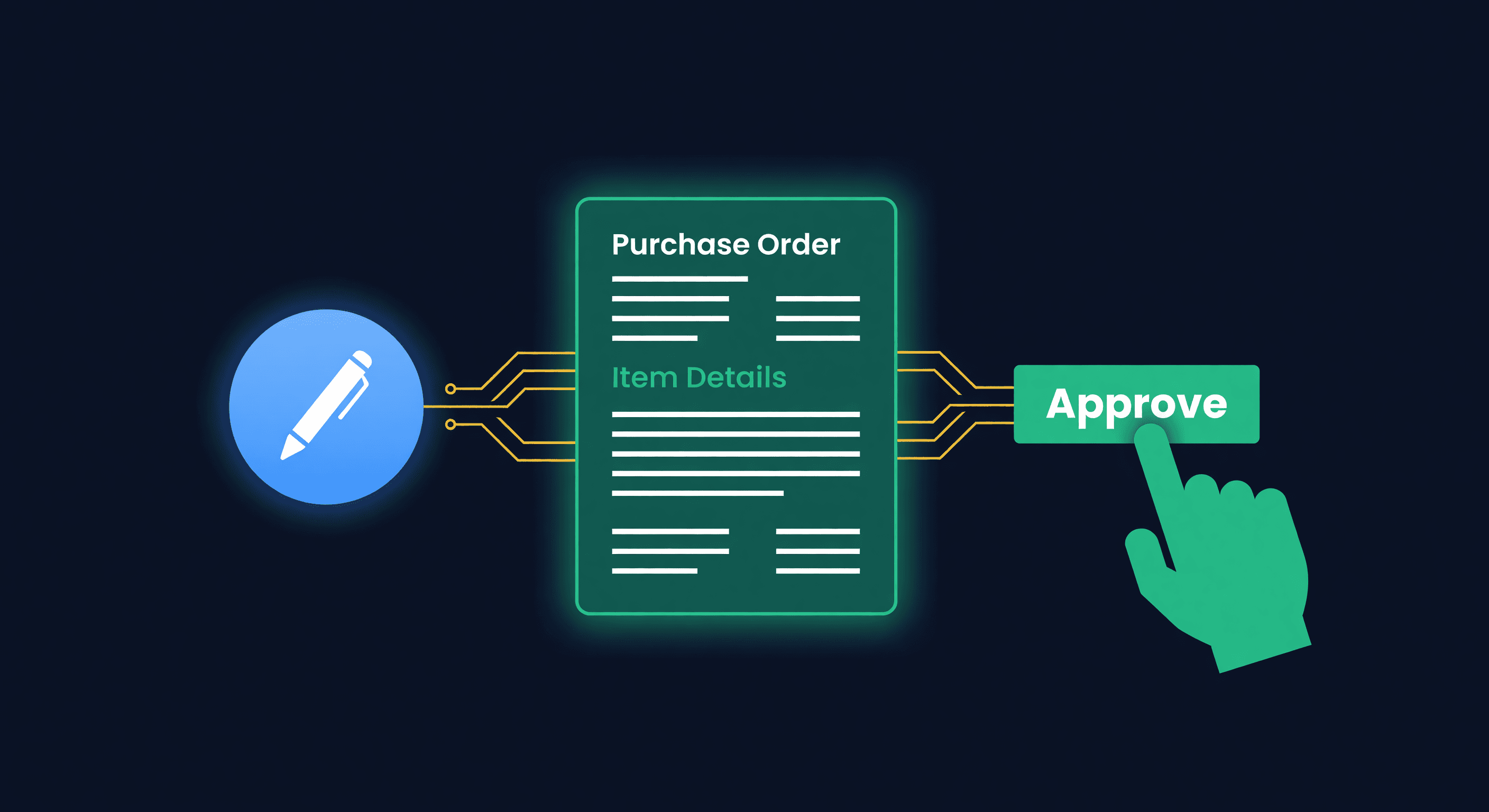
AI Purchase Orders: Automate Reordering Safely
Key takeaway: Manual reordering fails because it requires remembering to check inventory at exactly the right time. AI agents monitor stock levels continuously and create draft POs automatically, but you approve before anything reaches suppliers.
The Tuesday Morning You Forgot to Reorder
Here is a scenario I have lived through more than once. It is Tuesday. I am reviewing sales from the weekend. One of my top-10 SKUs sold faster than expected - 40% above forecast. I check my inventory. Twelve units left. Lead time from this supplier is 21 days.
I am already too late.
If I had placed the PO on Friday when on-hand crossed the reorder point, the shipment would arrive just in time. Instead I was answering support tickets and updating a listing. The reorder spreadsheet sat in a tab I did not open. Now I am looking at 10-14 days of stockout, which on a SKU doing $180/day in revenue means roughly $1,800 to $2,500 in lost sales. Plus the ranking damage on Amazon that takes weeks to recover.
This is the problem with manual purchase orders. The math is not hard. The hard part is remembering to run the math at the right time.
What "AI Reordering" Actually Means
The phrase "AI-powered purchase orders" sounds like the agent opens your supplier's website, enters a credit card, and buys inventory while you sleep. That is not what happens. That would be terrifying.
What actually happens is closer to a very attentive assistant who watches the numbers, does the calculations, writes up a draft, and taps you on the shoulder when something needs your attention.
Here is the sequence, step by step:
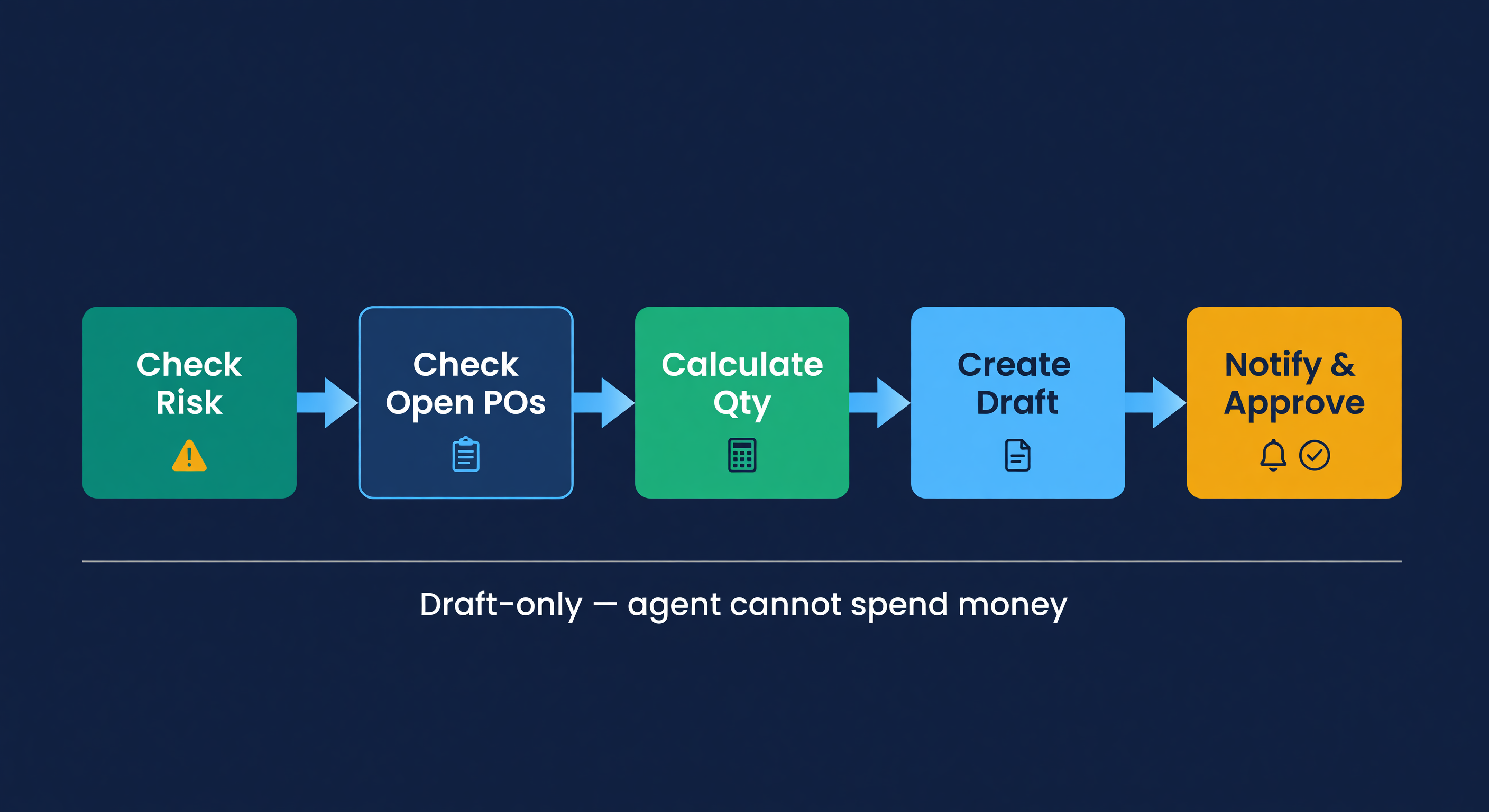
Step 1: The agent checks stockout risk. It pulls your current on-hand quantities, inbound shipments, and demand forecast from ReplenishRadar. For every SKU, it compares current stock against the reorder point. If a SKU is at or below the trigger, it flags it.
Step 2: It checks for existing POs. Before creating anything, the agent looks at your open purchase orders. If you already have a PO in transit for that SKU, the agent accounts for the inbound quantity and may decide the situation is covered. No duplicate orders.
Step 3: It calculates the order quantity. The agent considers your demand forecast, supplier lead time, MOQ, and casepack size. If your forecast says you need 340 units to cover the next order cycle, but your supplier's MOQ is 500 and the casepack is 25, the agent rounds to 500.
Step 4: It creates a draft PO. This is the key word. Draft. The agent writes the purchase order with the correct supplier, line items, quantities, and expected costs. The PO lands in ReplenishRadar with a "Draft" status. It does not go to your supplier. It does not commit to anything.
Step 5: It requests approval. Slack, Teams, Discord, email - wherever you want it. The notification includes the PO details and an approval link.
That is the full workflow. The agent does steps 1 through 5. You do one thing: decide whether to approve.
The Part Everyone Worries About
I talk to sellers about this and the first question is always some version of: "What if my agent goes rogue and creates 200 purchase orders at 3 AM?"
Fair question. Here is why it cannot happen.
Drafts are enforced server-side
Every PO created through the public agent flow starts as a draft. This is not a setting an ordinary agent can change. The send step is separate and requires prior approval. An agent cannot move a PO from draft to sent just by creating it.
Rate limits cap volume
Agent keys inherit tier rate limits and can be narrowed by capability and tool group. Standard gets 10 calls per hour, Growth gets 100, and Scale gets 1,000. Abnormal bursts can temporarily suspend the key, and the owner is notified.
One-click approval with expiring links
When the agent requests approval, the notification includes a signed action URL. The link expires. After that, you would need to go into ReplenishRadar directly to approve the PO - which means you are looking at it on screen, reviewing the details, and making a conscious decision.
I think of it like this: the agent is a very fast analyst. It can pull data, run calculations, and draft documents faster than any human. But it has no authority. It cannot sign checks. Only you can do that.
Worked Example: From Alert to Approved PO
Let me walk through a real scenario to make this concrete.
The situation. You sell a phone case on Amazon and Shopify. Your supplier is in Shenzhen with a 28-day lead time. The SKU does 15 units per day across both channels. Your safety stock is 90 units. Your reorder point is 510 units (15/day x 28 days + 90 safety stock).
Monday, 7:12 AM. ReplenishRadar's morning sync runs. Your on-hand drops to 504 units - below the 510 reorder point. The system generates a stockout risk alert.
Monday, 7:14 AM. Your AI agent picks up the alert. It checks for open POs on this SKU. None. It pulls the demand forecast: 15.2 units/day trending, with a slight uptick projected for next month. The agent calculates the order quantity:
Lead time demand: 15.2 units/day x 28 days = 426 units
Safety stock: 90 units
Target stock: 426 + 90 = 516 units
Current on-hand: 504 units
Inbound: 0 units
Order quantity needed: 516 units
Supplier MOQ: 200 units
Casepack: 50 units/case
Rounded order: 550 units (11 cases)
The agent rounds up from 516 to 550 to hit a clean casepack multiple. Smart.
Monday, 7:15 AM. The agent creates a draft PO in ReplenishRadar:
| Field | Value |
|---|---|
| Supplier | Shenzhen Components Ltd |
| SKU | PHC-BLK-PRO |
| Quantity | 550 units (11 cases) |
| Unit cost | $4.80 |
| Total | $2,640.00 |
| Expected delivery | 28 days from approval |
| Status | Draft |
Monday, 7:15 AM. You get a Slack notification:
"Draft PO created for PHC-BLK-PRO: 550 units at $4.80/unit ($2,640). Current stock: 504 units, 33 days of supply remaining. [Approve PO ->]"
Monday, 7:22 AM. You are drinking coffee. You see the Slack message. The quantity looks right - 550 is a clean casepack multiple above what the math says you need. The cost matches your last order. You click "Approve PO."
The PO moves from Draft to Approved. The purchase_order.approved webhook fires, so the agent knows the approval step is complete. If you want the PO sent to a supplier, rr_send_purchase_order can only send after approval.
Total time you spent: about 45 seconds. Reading the message, glancing at the numbers, clicking approve.
Total time the old way: 25-45 minutes. Open the spreadsheet. Check sales data. Calculate demand. Look up the supplier's lead time. Check if there are open POs. Calculate the order quantity. Round for casepacks. Open the PO template. Fill in the fields. Email the supplier. Log the PO somewhere.
Forty-five seconds versus forty-five minutes. And the forty-five-second version happened at 7:22 AM instead of Tuesday afternoon when you finally remembered.
What the Agent Cannot Do
I want to be clear about the boundaries, because overselling this would be dishonest.
The agent cannot negotiate with your supplier. If your supplier's prices went up and you need to push back, that is a conversation between humans.
The agent cannot evaluate new suppliers. It works with the suppliers you have already set up in ReplenishRadar, with the lead times and costs you have entered (or that the system has tracked from your PO history).
The agent cannot override your judgment on timing. If you know a tariff change is coming in six weeks and you want to pre-buy, that is a strategic call. The agent does not read trade policy news. You do.
The agent is a calculator that watches the clock. It solves the "I forgot to check the spreadsheet" problem. It does not solve the "I need to rethink my sourcing strategy" problem.
The Cost of Doing Nothing
Let me put a number on it.
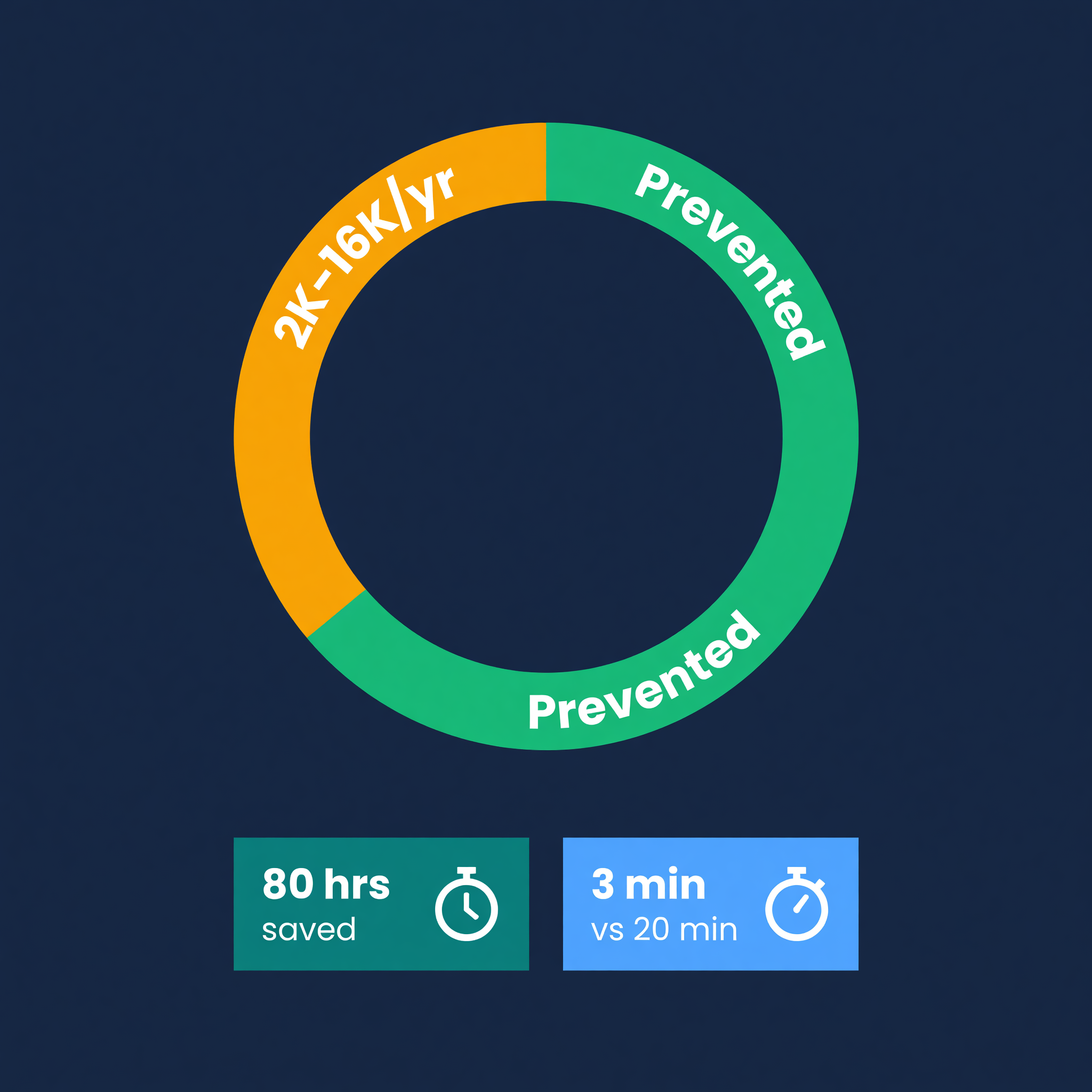
If you manage 200 SKUs and spend 10 minutes per week checking each SKU's stock level, demand trend, and reorder status, that is 33 hours per week. Nobody actually does this. So what happens is you check your top 20 SKUs weekly and the rest get checked monthly or when something breaks.
Those other 180 SKUs are where the stockouts hide. A single stockout on a $50/day SKU costs $500 if you catch it within 10 days. If you do not catch it for 3 weeks - and I have seen this happen on SKUs that are not top sellers but still move - that is $1,050 in lost revenue plus the recovery cost of getting back to normal velocity.
Multiply that by 3-4 stockouts per quarter on your non-flagship SKUs and you are looking at $3,000 to $4,000 per quarter in preventable losses. That is $12,000 to $16,000 per year. For most sellers in the $1M-$5M range, that is 1-2% of revenue, quietly bleeding out through inattention. If you want to pressure-test the number on your own SKUs, the stockout cost calculator runs the five-component math so you can see what a single missed reorder actually costs.
An agent that watches all 200 SKUs, every sync, every day, catches the ones you would have missed.
Getting Started With Agent-Drafted POs
We built ReplenishRadar's MCP package specifically for this use case. The setup takes about five minutes if you already have an AI agent like Claude Desktop, and the approval flow works through whatever notification channel you already use.
The key thing to understand: you are not giving up control. You are giving up the tedious part - the checking, the calculating, the drafting - and keeping the part that matters, which is the final decision. Every PO starts as a draft until you approve it. The agent cannot change that.
If you are managing more than 50 SKUs and still running your reordering off a spreadsheet and memory, this is the part of your week that should not require your brain. Let the agent handle the math. You handle the judgment calls.
Try ReplenishRadar free for 14 days ->
Related Reading:
Frequently Asked Questions
Get notified when it matters
Amazon and Shopify change the rules constantly. We'll email you when something affects your business.
See what your inventory is really doing
Doing $5M+ in revenue? Talk to our team
Related Posts
How to Create a Purchase Order (Step-by-Step)
How to create a purchase order for e-commerce, with a PO template, worked examples, and the ordering mistakes that cost sellers thousands.
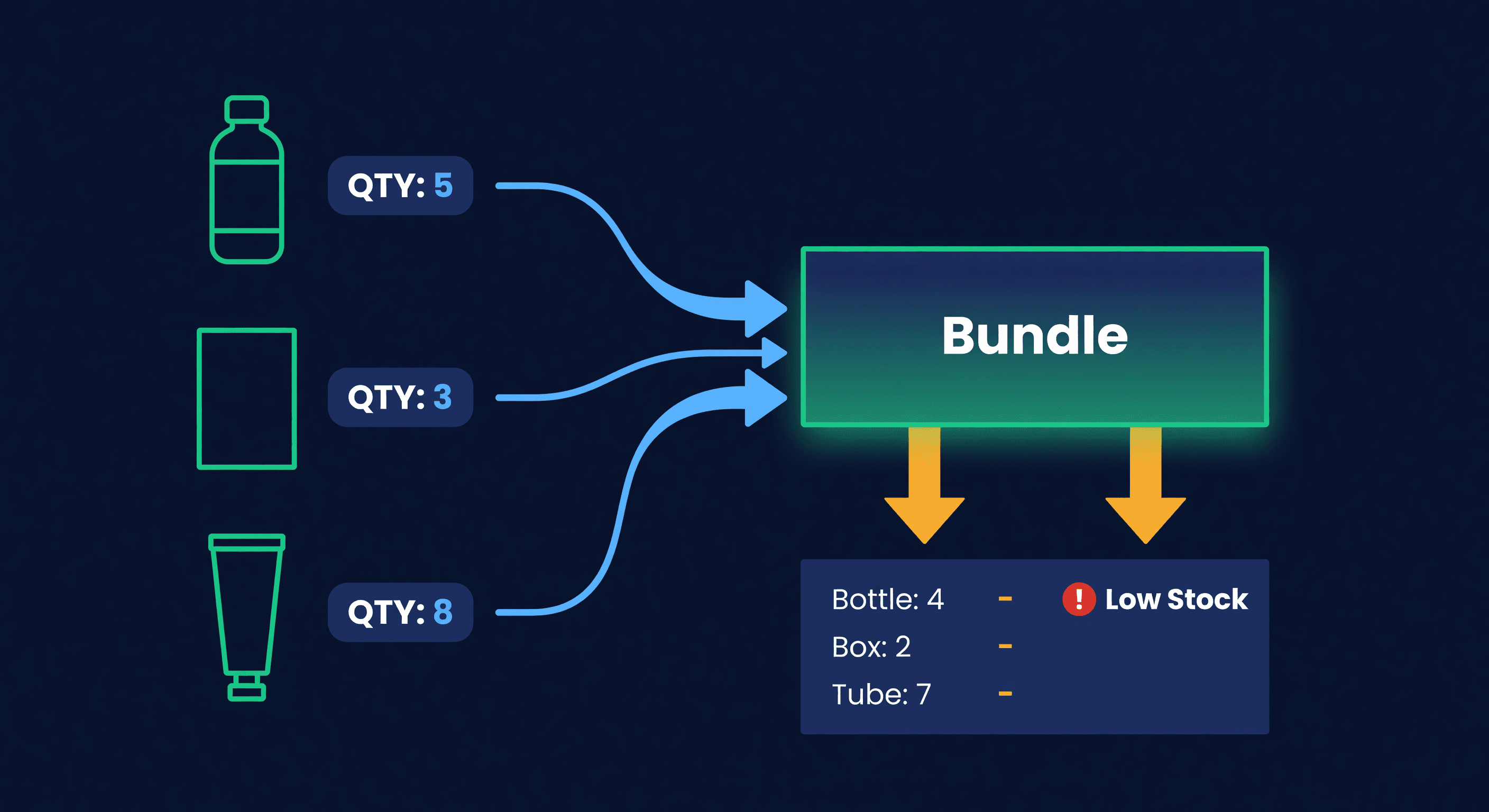
Shopify Bundles and the Inventory Problem
Product bundles sell great. Tracking their inventory is a mess. Here's how to handle component-level stock for Shopify bundles without overselling.
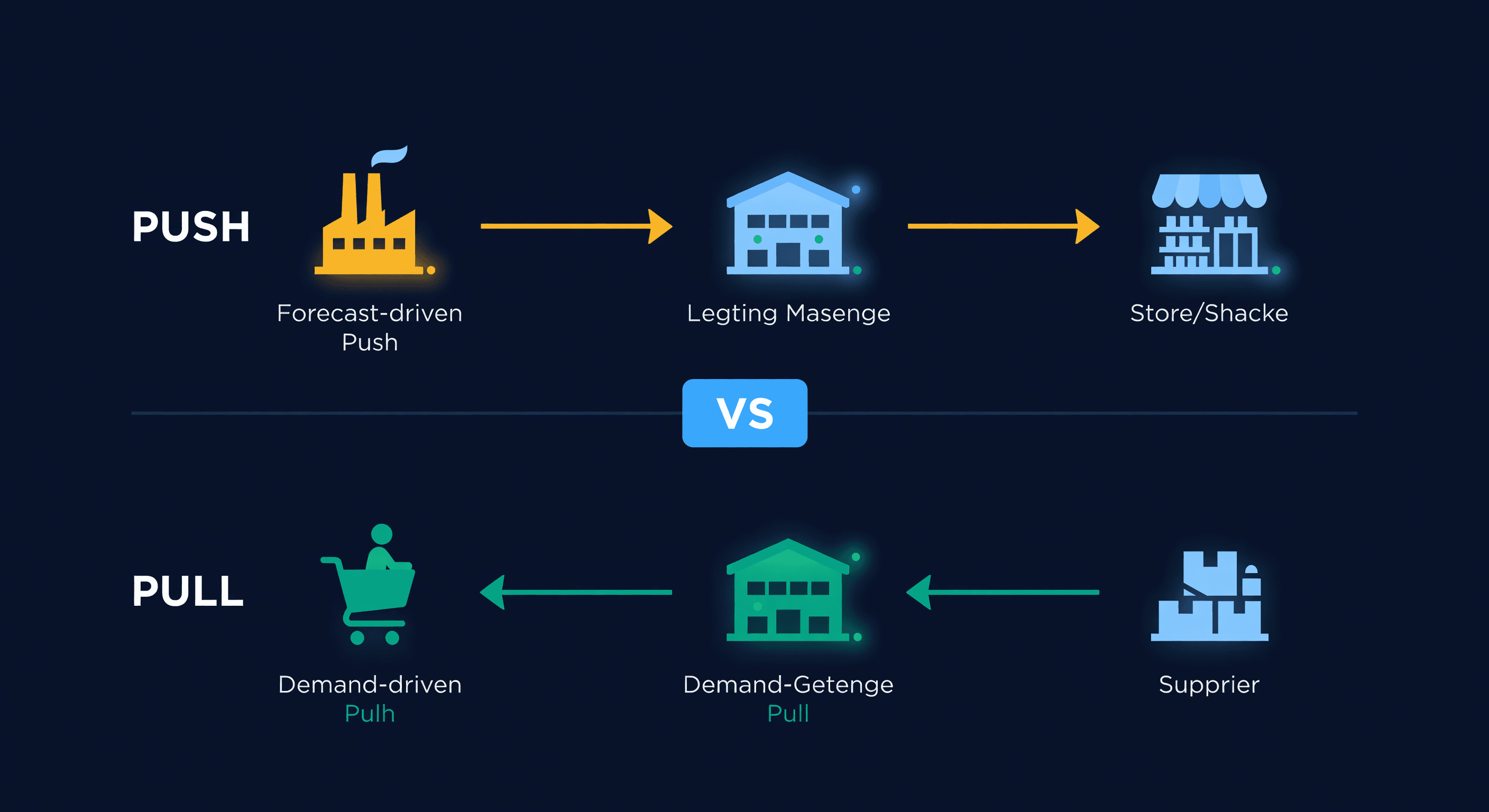
Pull vs Push Inventory: Which Model Wins?
Push inventory relies on forecasts. Pull inventory responds to demand. Most e-commerce sellers need both. Here's how to decide.
