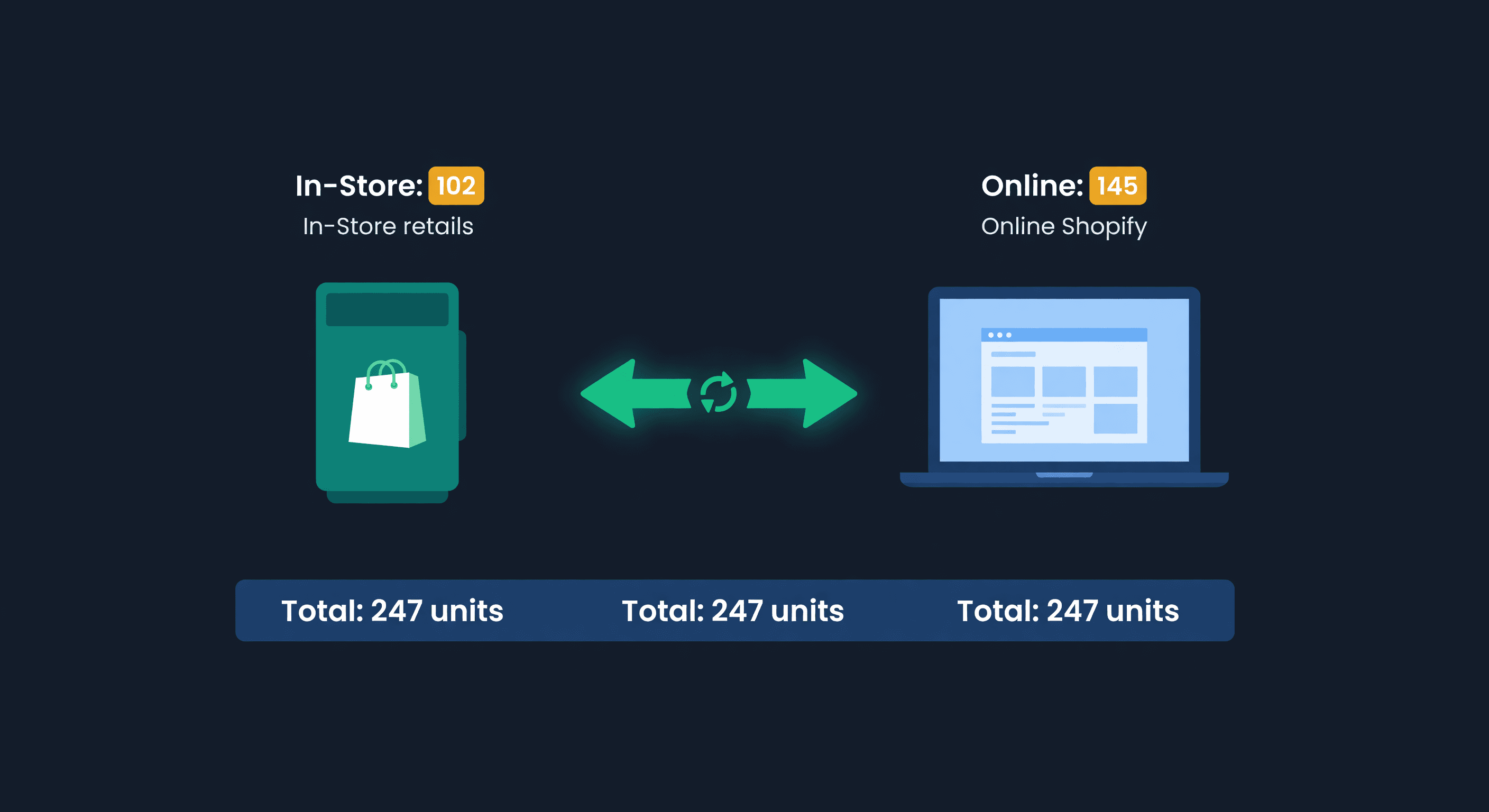
Shopify POS + Online Inventory Sync Guide
Key takeaway: Shopify POS syncs with online within seconds, but fast-moving items can still double-sell during the sync window. Use location-specific inventory reserves or hold back 1-3 units per channel as buffer stock on your fastest SKUs.
The Saturday Afternoon Problem
Say your retail store sells the last unit of a $120 candle at 3:47 PM on a Saturday. The POS beeps, the receipt prints, the customer walks out happy. Three minutes earlier, at 3:44 PM, a shopper in Portland added that same candle to her online cart. She checks out at 3:52 PM.
Shopify can accept both orders. It should not. But the online checkout was already under way when the register sale landed, and Shopify does not hold a unit for a cart in progress. You have sold one candle to two people.
Every seller who runs Shopify POS beside an online store carries this exposure. How often it bites depends on foot traffic, online volume, and how many SKUs sit at one or two units on the floor. The "shared inventory pool" works well in theory. In practice, there is a gap between when a sale happens at the register and when the online store acts on it.
That gap can be closed. Here is where it comes from and what we would do about it.
How Shopify POS Inventory Actually Works
Shopify uses a single inventory system. One database. When you add 50 units of a product to your "Retail Store" location, those 50 units are available for both POS and online sales (if that location fulfills online orders). Sell 1 at the register, the count drops to 49 everywhere.
That is the clean version. Here is where it gets messy.
Location assignment matters. Shopify lets you create multiple locations: Retail Store, Warehouse, Pop-Up, and so on. Each location holds its own inventory count. Your online store only sells from locations you have marked as "available for online orders" in your Shopify settings. If your Retail Store location is the only one fulfilling online orders, every POS sale directly competes with every online sale for the same units.
The sync is fast but not instant. With a strong network connection, a POS sale normally reaches the shared count quickly. That "normally" assumes solid Wi-Fi, no Shopify server hiccups, and the POS app running in the foreground. A busy register on weak store Wi-Fi stretches the window. So does a peak day like Black Friday, when Shopify's own servers carry their heaviest load. Any delay at all matters when your online store takes orders every few minutes.
Offline mode breaks everything. If your POS device loses its network connection, Shopify POS keeps working. You can still scan items, process sales, and collect payment. But none of those sales hit the central inventory database until the device reconnects.
Picture a holiday pop-up where the Wi-Fi drops for 40 minutes. You keep selling: 23 units across 15 transactions. The online store has no idea. When the POS reconnects, all 23 adjustments sync at once, and any product that also sold online during the outage is now oversold. If four of them did, that is four orders to cancel.
The Last-Unit Problem
This deserves its own section because it is the most common and most frustrating failure mode.
You have 1 unit of a product at your retail location. A customer picks it up off the shelf and walks to the register. While they are waiting in line, someone online adds it to their cart and starts checkout. The in-store customer pays first. POS decrements inventory to 0. But the online customer's checkout was already in progress. Shopify does not hold inventory during checkout (unless you use cart reservation apps, which have their own problems). The online order goes through.
One unit. Two sales. One very awkward email to write.
The odds on any single day are low. The cost per incident is not. Each one means an apology, a refund, and usually a discount code to keep the customer, and the exposure grows with every SKU that sits at exactly one unit on your floor.
The fix: never let your online store show 1 unit for products that are also on your retail floor. More on that below.
Location-Based Inventory Strategies
There are three ways to structure your inventory across POS and online.
Strategy 1: Shared Pool (Default)
One location fulfills both POS and online orders. Simple. Dangerous.
Retail Store Location: 50 units
  -> POS can sell all 50
  -> Online store can sell all 50
  -> Total exposure: 50 units competing across 2 channels
Works if: your foot traffic is low, your online volume is low, or you can live with the occasional oversell. A new store with a handful of orders a day can run this way for a long time.
Does not work if: combined daily transactions keep climbing, you have products that sell quickly, or you sell high-value items where an oversell means an angry $200 refund.
Strategy 2: Separate Locations, Separate Pools
Create two locations in Shopify: "Retail Store" and "Online Fulfillment." Stock them separately. Only "Online Fulfillment" is marked for online sales. POS sells from "Retail Store."
Retail Store:         30 units (POS only)
Online Fulfillment:   20 units (online only)
Total:                50 units, zero overlap
This eliminates overselling between channels entirely. The problem: you need to physically manage two pools of inventory. That means a separate shelf or bin for online orders, transferring stock between locations when one runs low, and reconciling counts when items get put on the wrong shelf.
For sellers with a dedicated back room or warehouse section, this works well. For a small retail shop where everything is on the floor? Painful.
Strategy 3: Shared Pool with Reserve Buffer (What We Recommend)
Use one location for both channels, but hold back a buffer from online sales manually. Shopify does not have a built-in "reserve" feature for this. You manage it by adjusting your online available quantity.
If you have 50 units at your retail location and your daily POS sales average 5 units:
Physical on hand:     50 units
Online listed:        45 units (you manually reduce by 5)
POS can sell:         all 50
Buffer:               5 units protect against same-day POS/online overlap
The 5-unit buffer means your online store always shows slightly less inventory than you actually have. If a POS sale and an online sale collide, the buffer absorbs it. You restock the buffer each morning by adjusting the online quantity up to reflect what is actually on the shelf minus the buffer.
This is the setup we would pick for most single-store sellers. The math for your buffer:
Buffer = Average Daily POS Sales x (Max Sync Delay in Hours / 24)
If you sell 8 units per day at the register and your worst-case sync delay is 1 hour (offline mode risk):
Buffer = 8 x (1 / 24) = 0.33 -> round up to 1 unit
Below 24 units a day at the register, with a one-hour worst case, the formula rounds to 1 unit. Push it up for high-velocity items or unreliable Wi-Fi.
Handling Returns Across Channels
A customer buys online, then returns in-store. Or buys in-store and wants to return by mail. Cross-channel returns create inventory confusion that most sellers underestimate.
Online purchase, in-store return. When you process this return through Shopify POS, the inventory goes back to your retail location. If your online orders ship from a different location (Strategy 2), the unit is now in the wrong place. Your retail count goes up by 1, but your online fulfillment count is still short. You need a stock transfer to fix it.
In-store purchase, online return. The customer ships the product back to your warehouse or fulfillment center. Shopify adds the unit back when you process the return. But if the return goes to your "Online Fulfillment" location and the original sale was from "Retail Store," the retail location is still short.
The reconciliation problem. Over time, returns create inventory drift between locations. Reconcile weekly: count what is on the retail floor, compare it to Shopify's number for that location, and adjust. Skip it and the gap compounds a unit at a time, from return-routing errors rather than theft.
For a single store, the weekly count is a short Monday-morning job. Not exciting. But the alternative is discovering a 15-unit discrepancy during a Saturday rush and having no idea which numbers to trust.
Multi-Location POS Sellers
If you have multiple retail locations plus an online store, every problem above multiplies.
| Locations | Inventory Pools to Manage | Cross-Channel Return Paths |
|---|---|---|
| 1 store + online | 1-2 | 2 |
| 2 stores + online | 2-3 | 6 |
| 3 stores + online | 3-4 | 12 |
| 5 stores + online | 5-6 | 30 |
With 3 retail locations, a customer can buy at Store A, return at Store B, and the unit needs to get allocated to either Store C or Online Fulfillment based on where the days of supply signal the demand is. Done by hand, that routing and the counts behind it become a standing weekly job for someone, and the job grows with every location you add. Our guide to multi-location inventory covers how to keep it manageable.
Catching POS Discrepancies Before They Cost You
The manual way to manage POS-online sync is checking your Shopify admin inventory page, filtering by location, and eyeballing the numbers against what is on the shelf. It catches the big gaps. It misses the slow drift: a unit here, a unit there, compounding over weeks until your numbers are well off and you cannot say when it started.
Slow drift shows up when you count often against a number you trust. ReplenishRadar pulls inventory from every Shopify location on each sync, using Shopify's own available figure for each one. Open a product and its stock card lists every location on its own row, so the weekly shelf count has one number per location to check against instead of a filtered admin page per store. When a location runs out, the alert names it, as in "Out of stock at Main Street", along with the day it went out. It will not tell you which POS sale failed to decrement. The count still finds that, and a clean number per location is what lets it find a small gap early.
Try ReplenishRadar free for 14 days ->
The 1-Unit Rule
One rule covers most of this. Never let your online store show 1 unit of a product that is also on your retail floor. That single unit is the one that gets sold twice.
Set your online listing to show 0 when physical stock hits your buffer threshold. Accept the missed online sale. It is cheaper than the oversold order, the refund, the apology email, and the customer who does not come back.
The sellers who struggle with POS sync are the ones trying to sell every last unit through every channel simultaneously. The sellers who do it well accept a small amount of phantom unavailability as the cost of not disappointing customers. We think that tradeoff is always worth it.
Related Reading:
Frequently Asked Questions
Get notified when it matters
Amazon and Shopify change the rules constantly. We'll email you when something affects your business.
See what your inventory is really doing
Doing $5M+ in revenue? Talk to our team
Related Posts
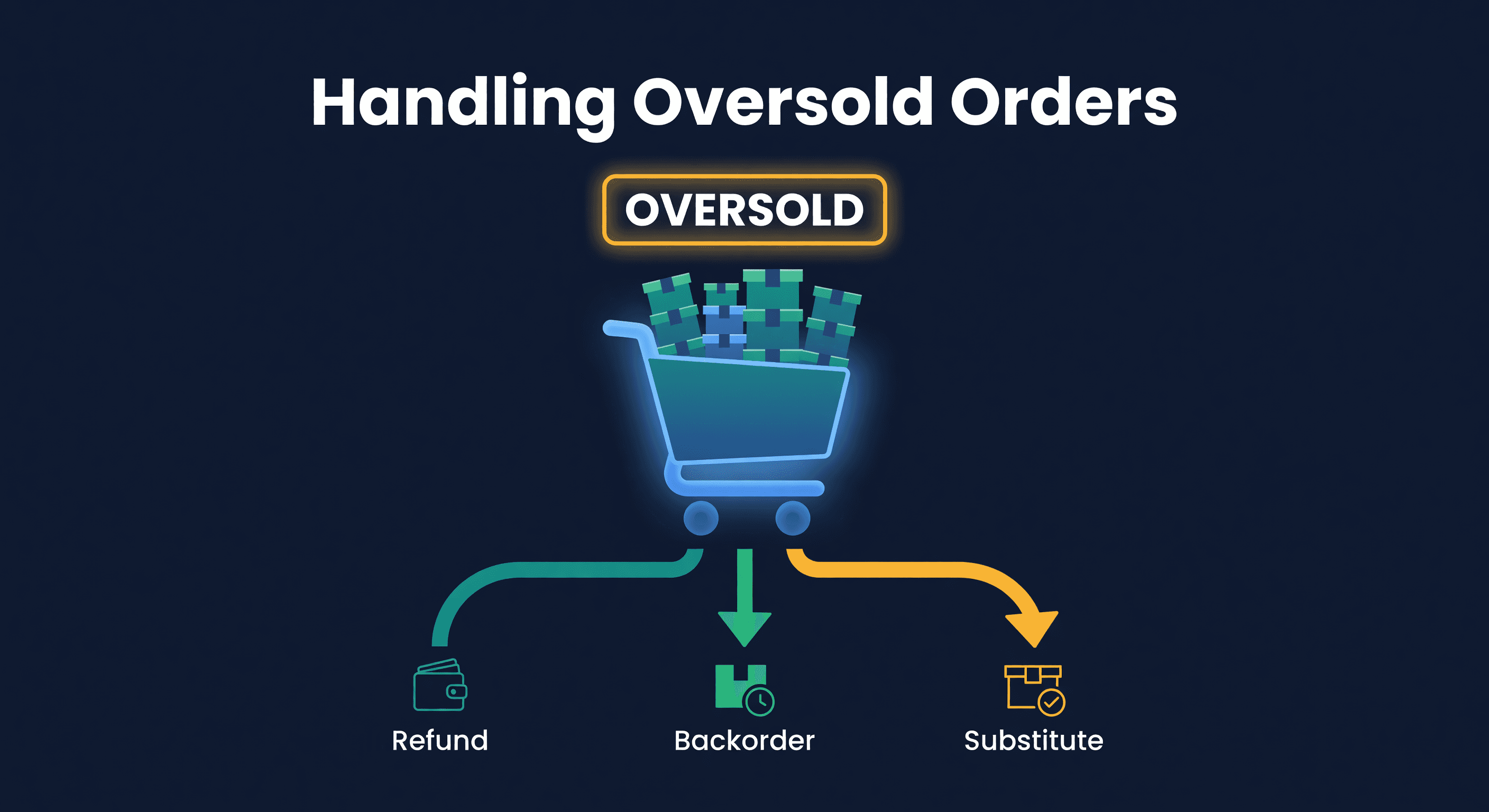
How to Handle Oversold Orders in E-commerce
Why overselling happens on multi-channel stores, what it costs you, and the prevention strategies that actually work, from buffer stock to real-time push sync.
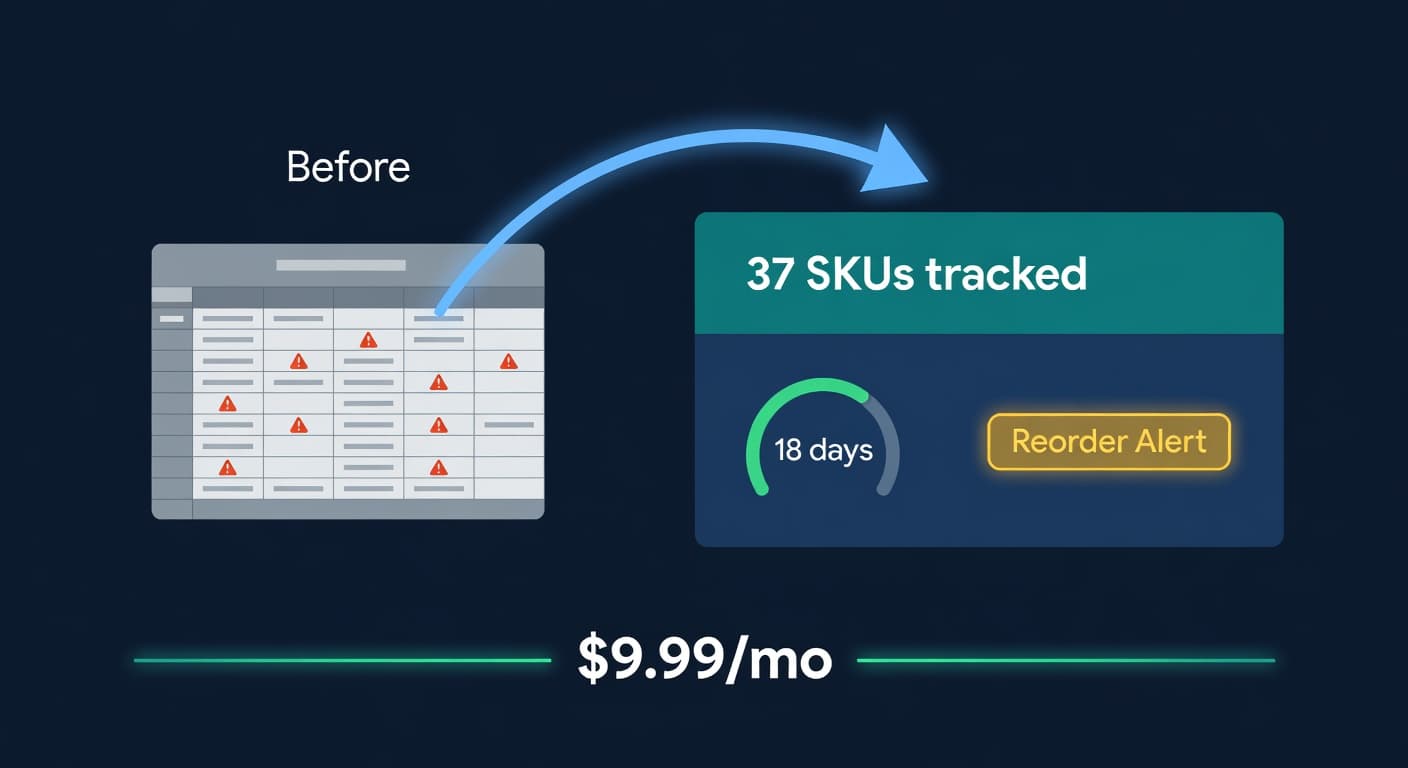
Inventory Lite: Who It's For, What It Does, When to Upgrade
Lite is $9.99/mo for hybrid Shopify + Amazon sellers under 50 SKUs and $10k/30d. Here is what it covers and when you outgrow it.
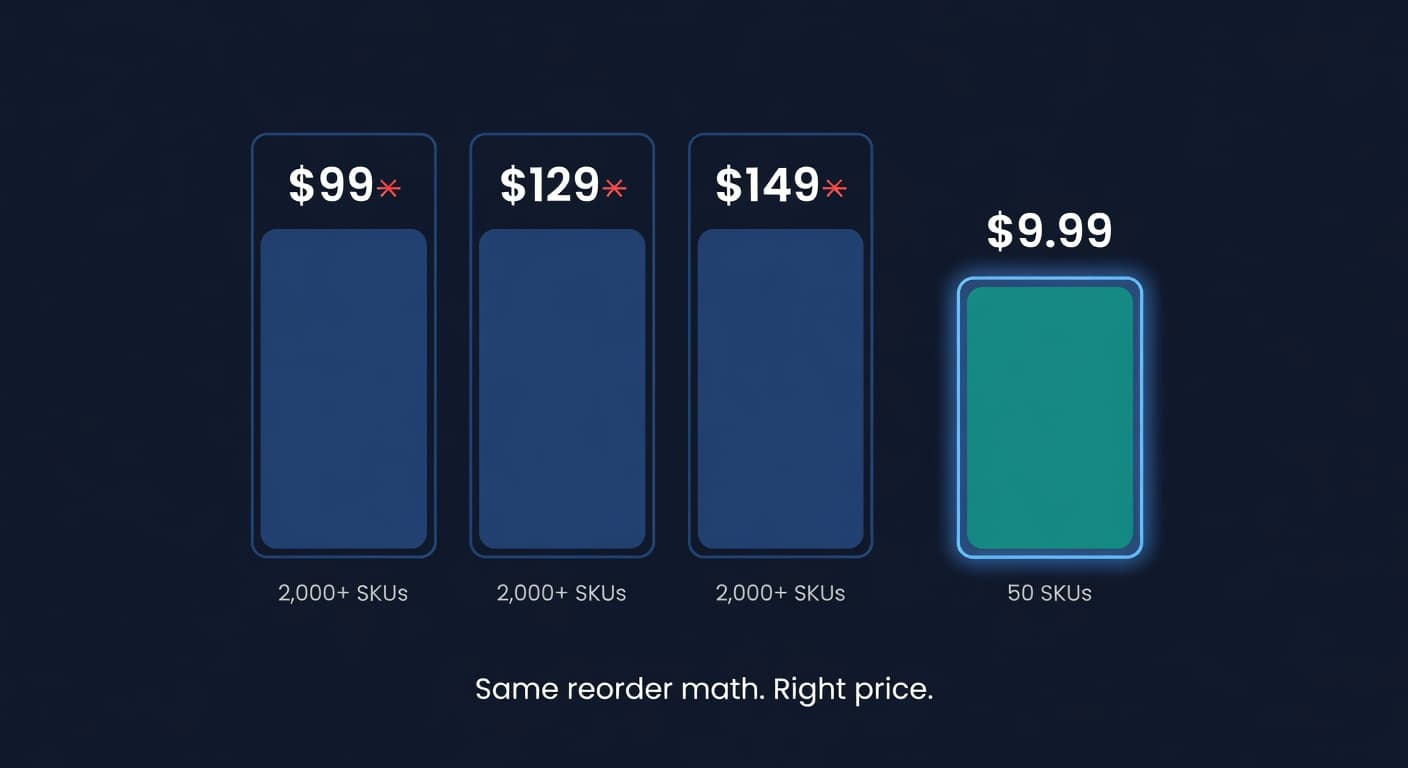
Why We Built a $9.99 Inventory Plan When Rivals Start at $99
Most inventory tools start at $99 and assume you have 2,000 SKUs and a buyer. If you sell 30 SKUs across Shopify and Amazon, that math is broken.
