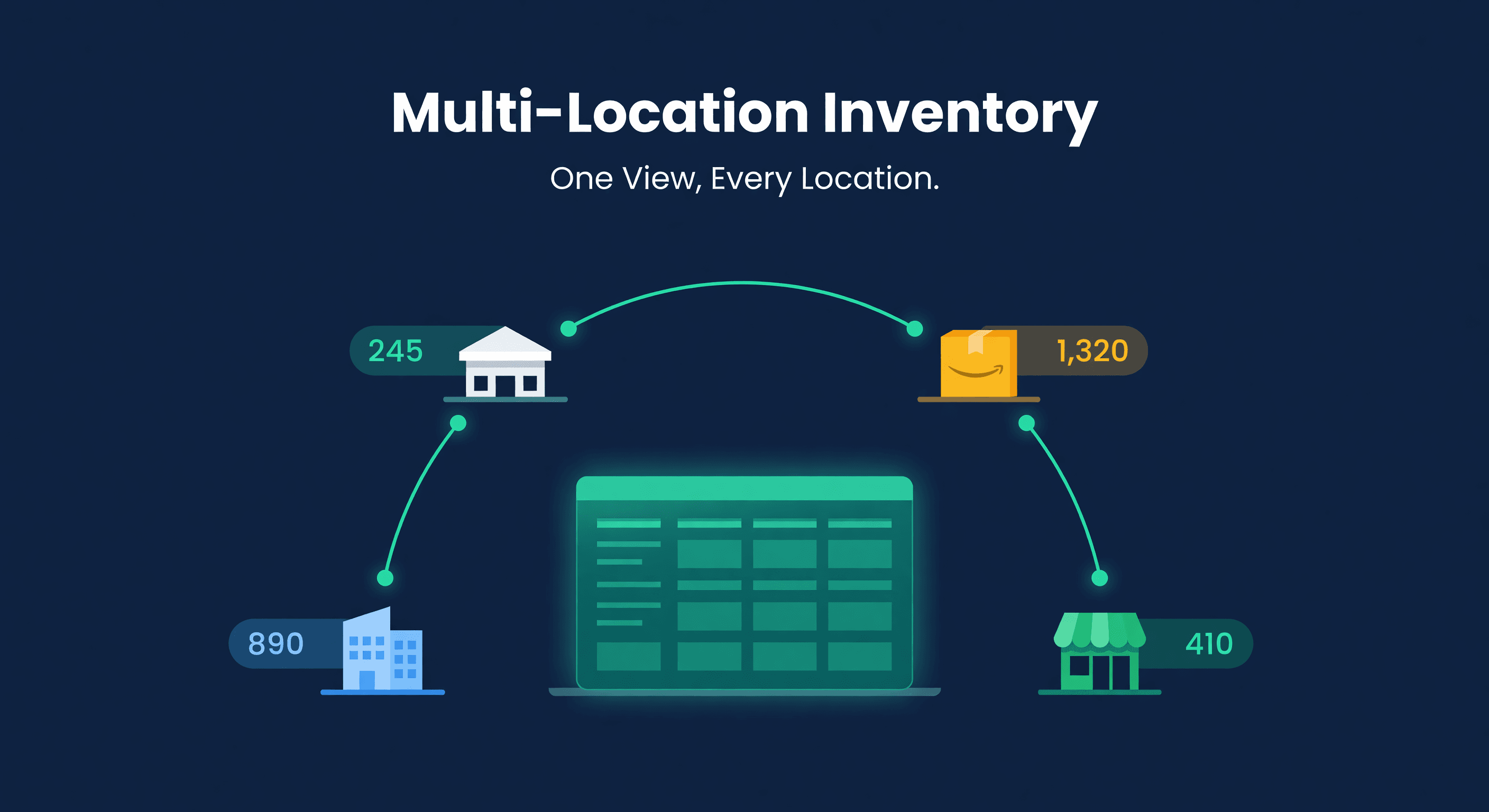
How to Set Up Multi-Location Inventory (Without an ERP)
Key takeaway: Track each warehouse, FBA center, and 3PL location separately with one unified view. Without consolidated visibility, you create phantom stock (system says available, shelf is empty) and miss transfer opportunities between locations.
The Problem Starts with the Second Location
Selling from a single warehouse is straightforward. You know what you have, where it is, and how fast it is selling. Then you send inventory to FBA. Now the same SKU lives in two places.
Picture the moment multi-location inventory breaks for a seller. Amazon says 80 units. The warehouse shows 120. A spreadsheet says 145. A PO is in transit with 500 more. Now you need to decide whether to reorder, and you cannot answer the most basic question: how many units do you actually have?
At that point, sellers often either overspend on an ERP or keep muddling through with disconnected spreadsheets. Neither solves the problem. There is a middle path.
When You Need Multi-Location Tracking
You need this if any of the following apply:
- You sell on Amazon FBA and fulfill orders from your own warehouse
- Multiple warehouses or a 3PL are in the mix alongside your own storage
- A retail location and an online store draw from separate stock
- Inventory regularly transfers between locations
- Overselling or phantom stock from disconnected counts has already happened
If you sell from a single location on a single channel, basic inventory tracking is fine. Multi-location tracking becomes necessary when the same SKU exists in more than one physical place.
Why ERPs Are Overkill
The enterprise reflex is to implement an ERP. For most e-commerce sellers under $10M in revenue, that is a mistake:
| Factor | ERP (NetSuite, SAP B1) | Purpose-Built Inventory Tool |
|---|---|---|
| Implementation time | 3-6 months | 1-2 days |
| Annual cost | $25,000-$100,000+ | $500-$3,000 |
| Complexity | Manufacturing-grade | E-commerce focused |
| Shopify/Amazon integration | Requires middleware | Native connectors |
| Team needed to manage | Dedicated admin | Self-serve |
| Time to first value | Months | Hours |
ERPs are built for companies that manufacture products, manage complex BOMs, run MRP, and need GL integration across departments. If you buy finished goods and sell them on Shopify and Amazon, you need about 10% of what an ERP offers and none of the overhead.
There is a middle option worth naming. Warehouse-ops platforms like Finale Inventory sit between an ERP and a planning tool: strong on barcode scanning, lot tracking, and pick/pack across locations, lighter on cross-channel demand forecasting. If your bottleneck is the physical warehouse floor, that is a fit. If your bottleneck is deciding what to reorder across channels, that is a different job.
The Four Things You Actually Need
1. A Unified View of All Stock
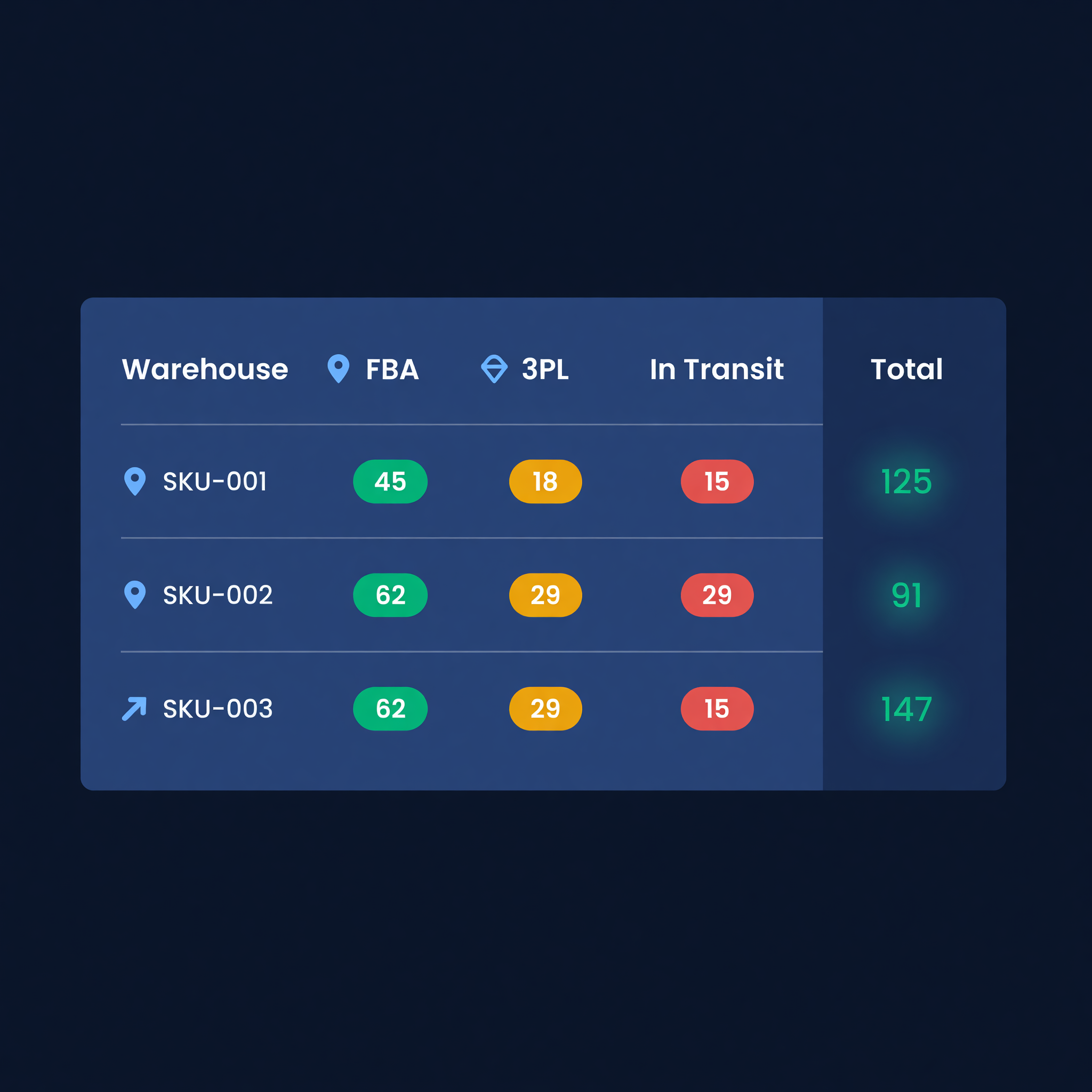
One screen that shows total inventory across every location, broken down by SKU:
| SKU | Warehouse | FBA | 3PL | In Transit | Total |
|---|---|---|---|---|---|
| WIDGET-A | 120 | 80 | 0 | 500 | 700 |
| WIDGET-B | 45 | 200 | 30 | 0 | 275 |
| GADGET-C | 0 | 50 | 0 | 100 | 150 |
Without this, you are making purchasing decisions with partial data. You might reorder WIDGET-B because the warehouse is low, not realizing FBA has 200 units.
2. Transfer Tracking
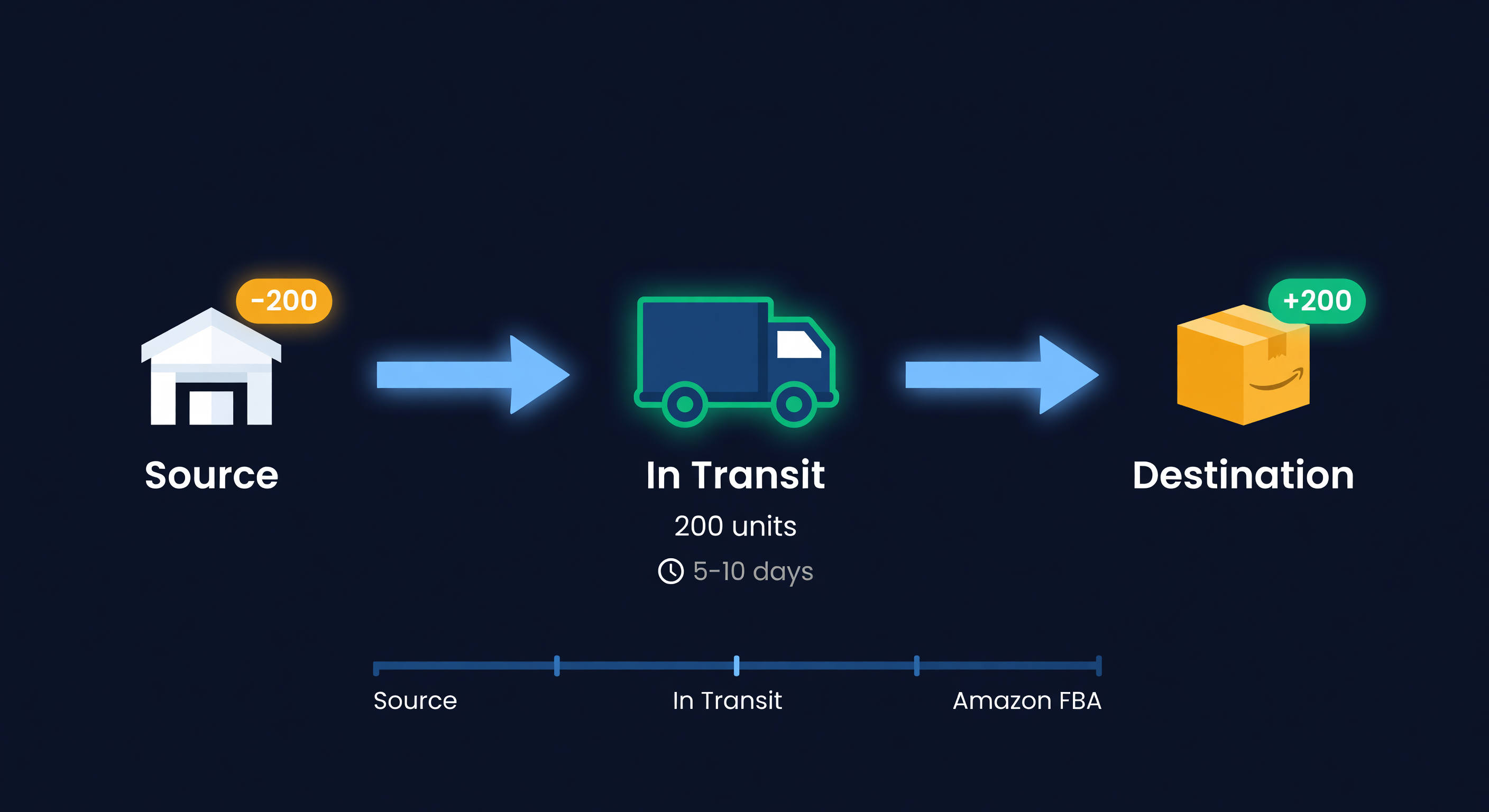
Inventory in transit between locations is neither here nor there. Literally. It must be tracked as its own state:
Source Location  -->  In Transit  -->  Destination Location
 (deducted)         (tracked)         (added on arrival)
Common transfer flows:
- Warehouse to FBA (FBA replenishment)
- Warehouse to 3PL
- Supplier to warehouse (purchase orders)
- Returns back to warehouse
Each transfer needs a date shipped, expected arrival, and confirmation of receipt. Without this, you either double-count (showing stock at both locations) or lose visibility during transit.
3. Location-Aware Forecasting
Demand is not uniform across locations. FBA might sell 80% of your volume for a given SKU while your Shopify store sells 20%. Forecasting and reorder points must account for this:
| SKU | FBA Velocity | Shopify Velocity | FBA Restock Lead Time | Shopify Lead Time |
|---|---|---|---|---|
| WIDGET-A | 20/day | 5/day | 10 days (from warehouse) | 0 days (ships from warehouse) |
| WIDGET-B | 8/day | 12/day | 10 days | 0 days |
WIDGET-A needs 200+ units at FBA at all times (20/day x 10 days). WIDGET-B sells faster on Shopify, so warehouse stock matters more. Most Shopify-first forecasting tools, including Inventory Planner, forecast at the catalog level and leave the per-location split to you. Our days of supply calculator runs this per-location math with your actual velocity per channel.
4. Per-Location Alerts
Different locations have different thresholds:
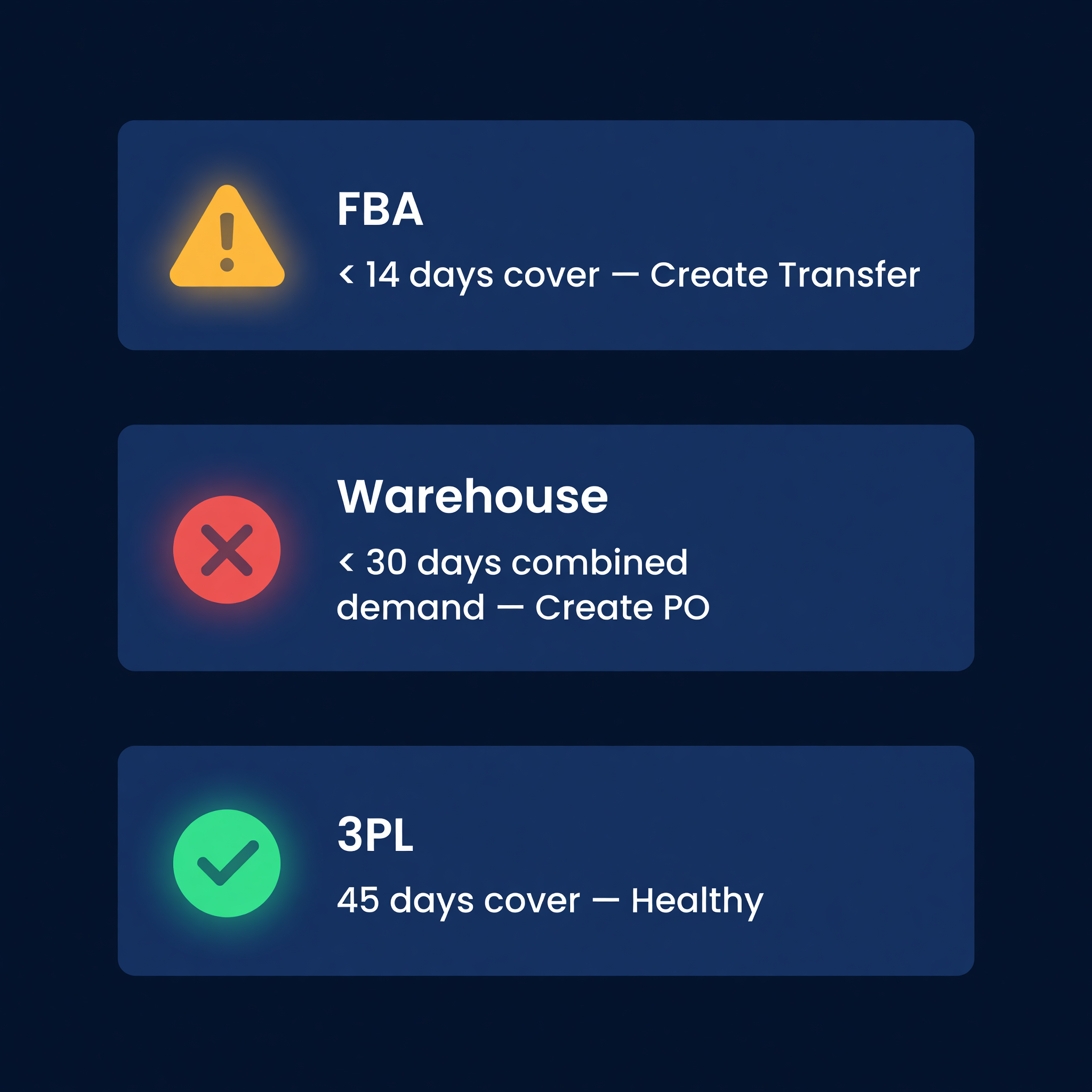
- FBA: Alert when stock covers fewer than 14 days of sales (because replenishment takes 7-10 days)
- Warehouse: Alert when total stock (warehouse + on order) drops below 30 days of combined demand
- 3PL: Alert based on that location's specific fulfillment velocity
A single global reorder point does not work when replenishment lead times and demand rates differ by location.
Setting It Up
Step 1: Define Your Locations
List every physical place where inventory sits:
| Location | Type | Replenished From | Lead Time |
|---|---|---|---|
| Main Warehouse | Owned | Suppliers | 30-45 days |
| Amazon FBA | Marketplace | Main Warehouse | 7-10 days |
| 3PL West Coast | Partner | Main Warehouse | 3-5 days |
| Retail Store | Owned | Main Warehouse | 1-2 days |
Include lead times for transfers between locations, not just from suppliers. The time to restock FBA from your warehouse is just as important as the time to receive from your supplier.
Step 2: Assign Current Stock by Location
Reconcile each platform's reported numbers. Pull FBA inventory from Seller Central, warehouse counts from your WMS, and 3PL counts from your partner's portal. Include any in-transit shipments. If Amazon says 80 and you think it should be 95, investigate before accepting either number.
Step 3: Configure Transfers
Define your standard transfer workflows:
Warehouse to FBA:
- Trigger: FBA stock drops below 14 days of cover
- Quantity: 30 days of FBA demand
- Method: FBA inbound shipment (see FBA Inbound Shipments)
Warehouse to 3PL:
- Trigger: 3PL stock drops below 10 days of cover
- Quantity: 21 days of 3PL demand
- Method: Pallet shipment via carrier
Each transfer type should have a standard procedure so decisions are repeatable, not improvised.
Step 4: Set Up Location-Specific Alerts
| Location | Alert Type | Threshold | Action |
|---|---|---|---|
| FBA | Low stock | < 14 days cover | Send to Amazon |
| Warehouse | Low stock | < 30 days combined demand | Create purchase order |
| 3PL | Low stock | < 10 days cover | Create 3PL transfer |
| FBA | Excess stock | > 90 days cover | Pause FBA restocking |
| Warehouse | Dead stock | 0 sales in 90 days | Review for liquidation |
Alerts should consider the full picture. A "low stock at FBA" alert is not urgent if you have a transfer already in transit arriving in 3 days.
Five Pitfalls That Will Cost You
Disconnected systems. The most damaging mistake. Your warehouse uses a spreadsheet. Amazon has its own count. Nobody reconciles them. You end up with phantom stock - units your system says exist but are not physically there. Fix: one system of record. Everything else feeds into it.
Transfer delays not tracked. You ship 200 units to FBA on Monday. Amazon receives and processes them over 5-10 days. During that window, your warehouse shows -200 but FBA has not updated yet. You panic and reorder from your supplier. Fix: track in-transit inventory as a separate state.
Tab-hopping for answers. You check Seller Central for FBA stock. Then Shopify Admin for warehouse stock. Then your 3PL portal. Then a spreadsheet to add it all up. By the time you finish, the numbers have changed. Fix: pull all location data into a single dashboard that updates automatically.
One-size-fits-all reorder points. Using the same reorder point for every location ignores that each has different demand velocity and replenishment lead times. Fix: calculate reorder points per location based on that location's data.
Ignoring channel-specific demand. Amazon Prime Day does not affect your Shopify store. Your Shopify flash sale does not affect FBA. Forecasting combined demand without accounting for channel-specific events produces inaccurate results. Fix: forecast per channel, then sum for total demand. See Multi-Channel Inventory Challenges for more on this.
How We Handle This in ReplenishRadar
ReplenishRadar connects to your Shopify and Amazon accounts and builds the unified inventory view on the first sync. Every location's stock levels - warehouse, FBA, in-transit - show up in one place. No tab-hopping.
The transfers workflow tracks movements between locations with in-transit visibility so you never double-count or lose track of shipments. Forecasting runs per channel, per SKU, which means reorder suggestions reflect where demand actually comes from, not a blended average. Alerts fire based on location-specific thresholds, because 14 days of FBA cover and 30 days of warehouse cover are two different calculations with two different urgencies.
No ERP. No middleware. Connect your stores and the picture unifies within your first sync.
If you are juggling tabs, portals, and spreadsheets to answer "how many do I have," you are solving the wrong problem manually. Try ReplenishRadar free for 14 days ->
Related Reading:
Frequently Asked Questions
Get notified when it matters
Amazon and Shopify change the rules constantly. We'll email you when something affects your business.
See what your inventory is really doing
Doing $5M+ in revenue? Talk to our team
Related Posts
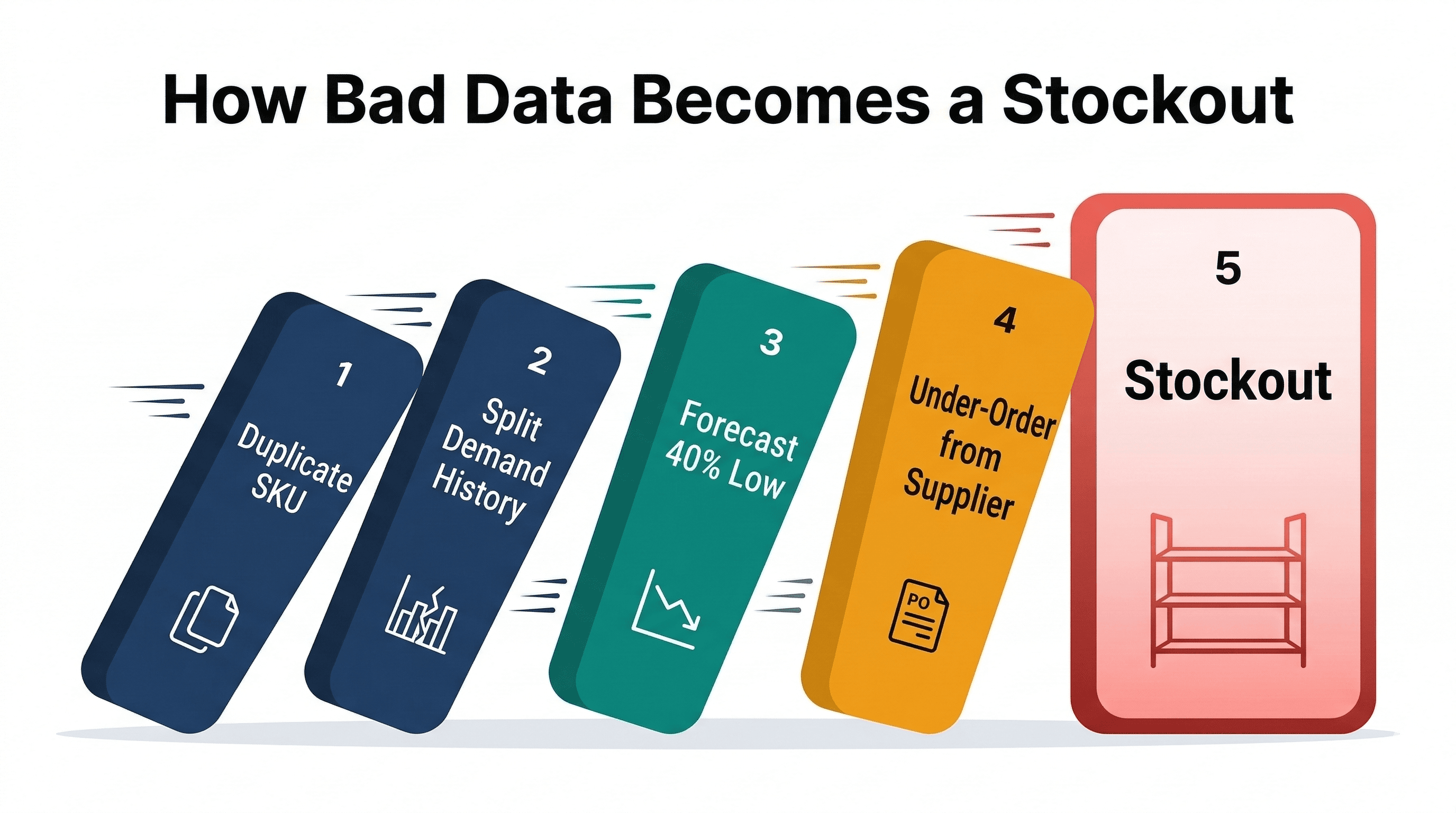
Your Inventory Data Is Wrong
How bad SKU data (duplicates, missing costs, unmatched listings, missing demand) breaks inventory forecasting and costs real money.
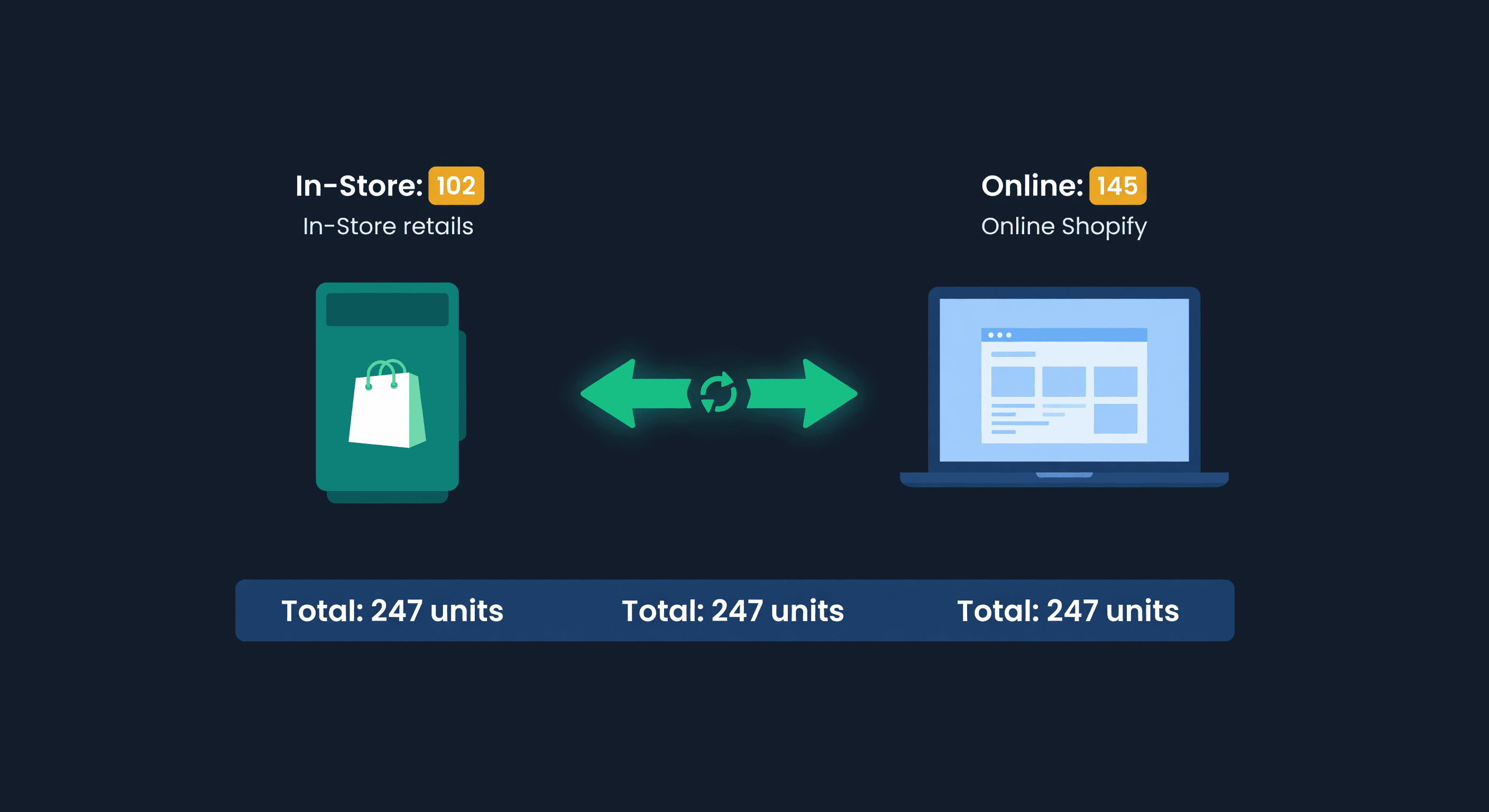
Shopify POS + Online Inventory Sync Guide
How Shopify POS syncs with your online store, where it breaks, and how to stop selling the last unit twice, with the buffer math to size your reserve.
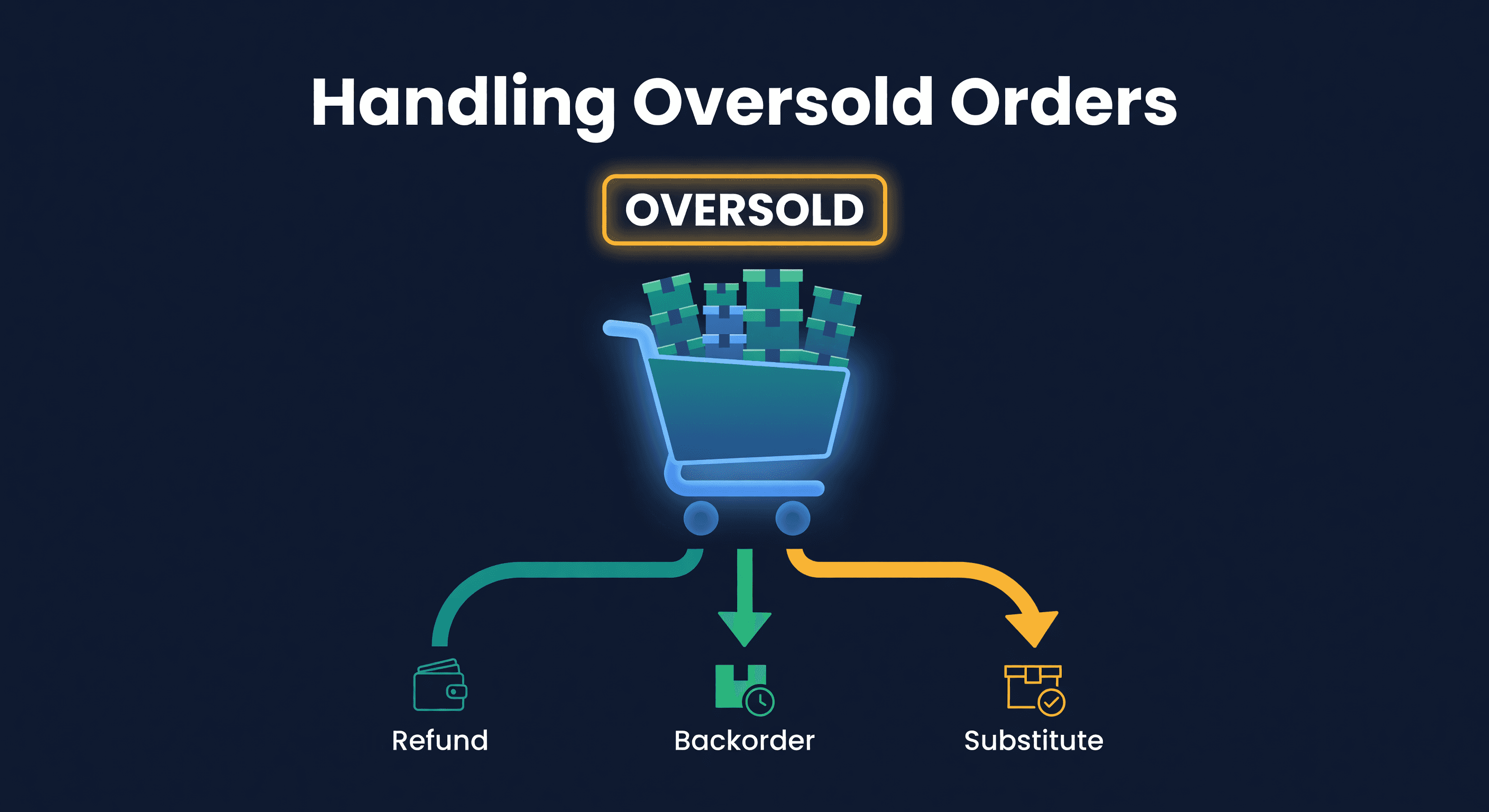
How to Handle Oversold Orders in E-commerce
Why overselling happens on multi-channel stores, what it costs you, and the prevention strategies that actually work, from buffer stock to real-time push sync.
